

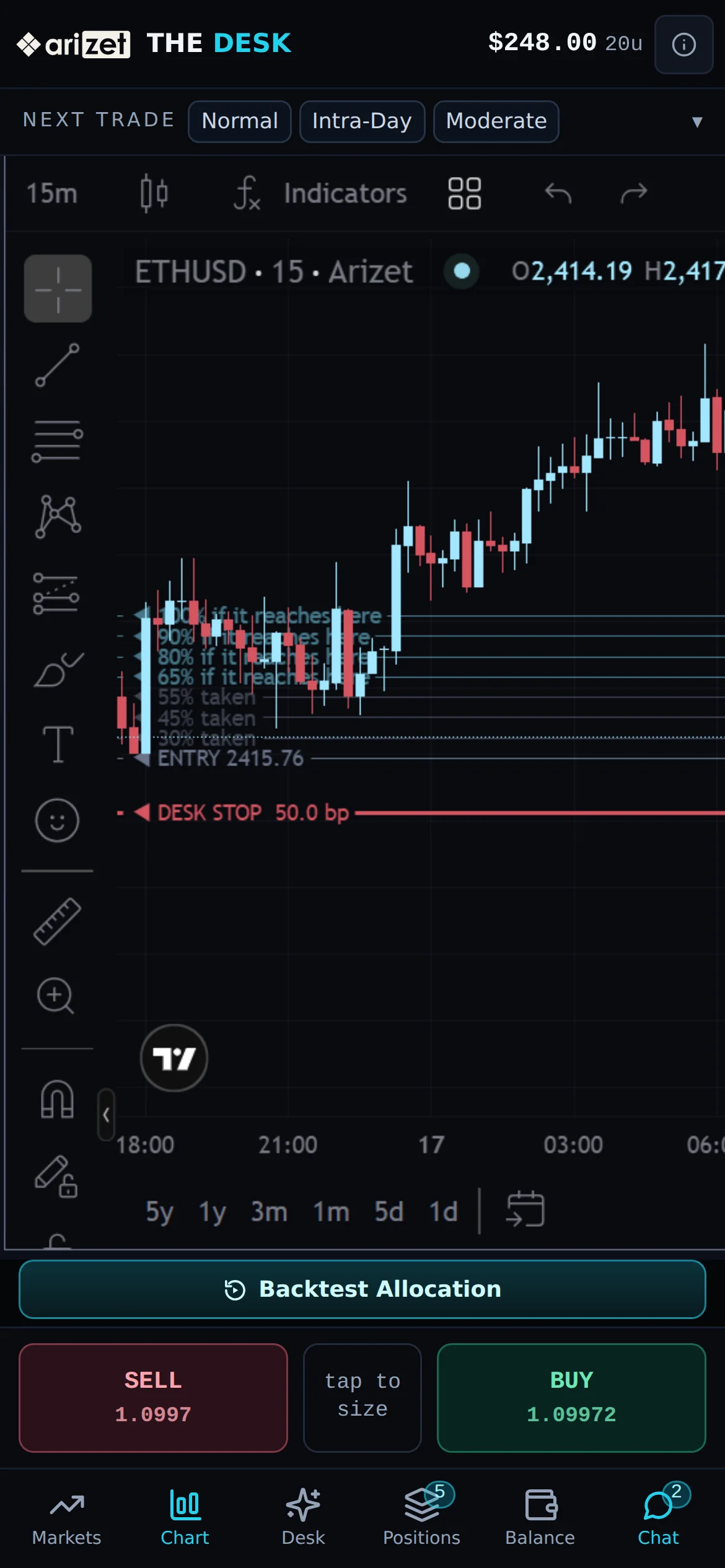
On a phone the panels become tabs along the bottom, and the order ticket slides up as a sheet.
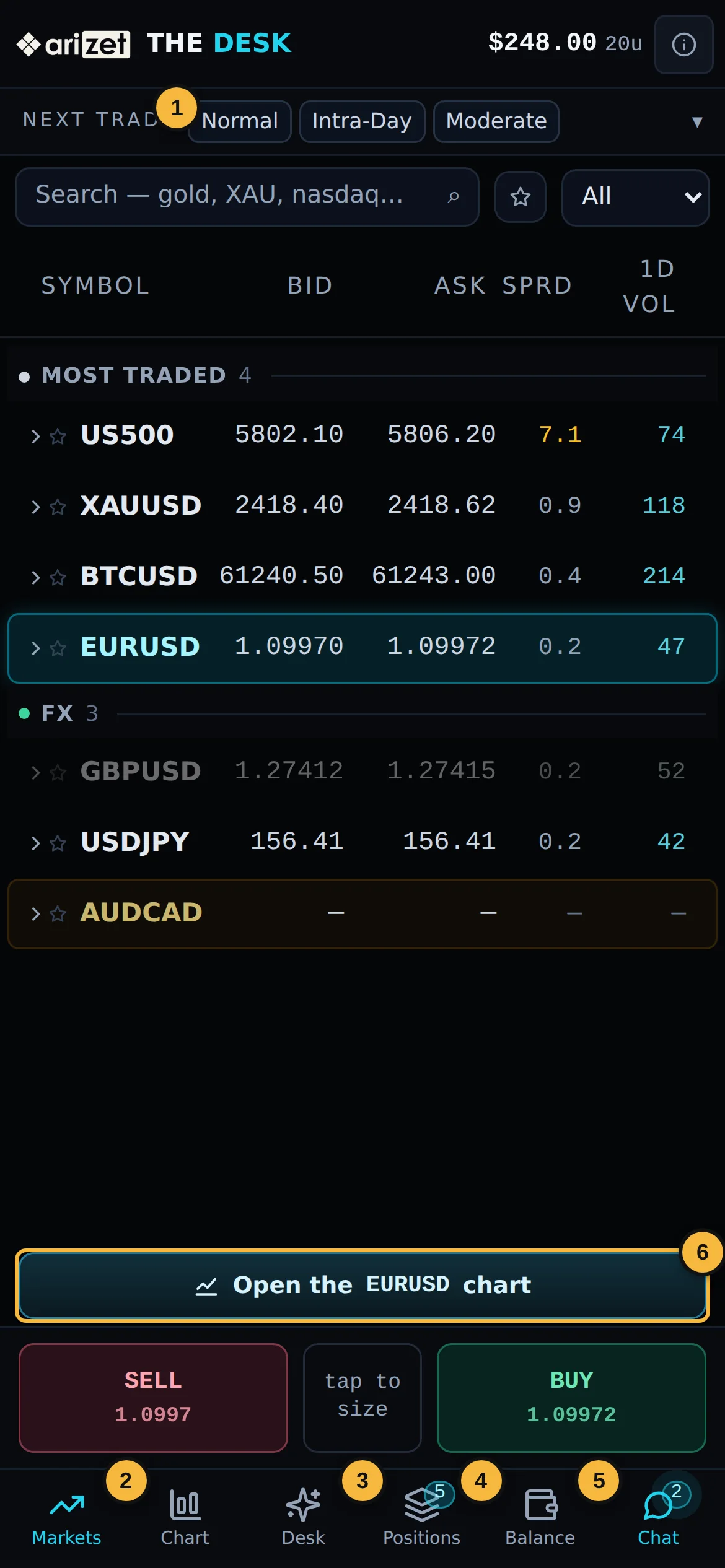
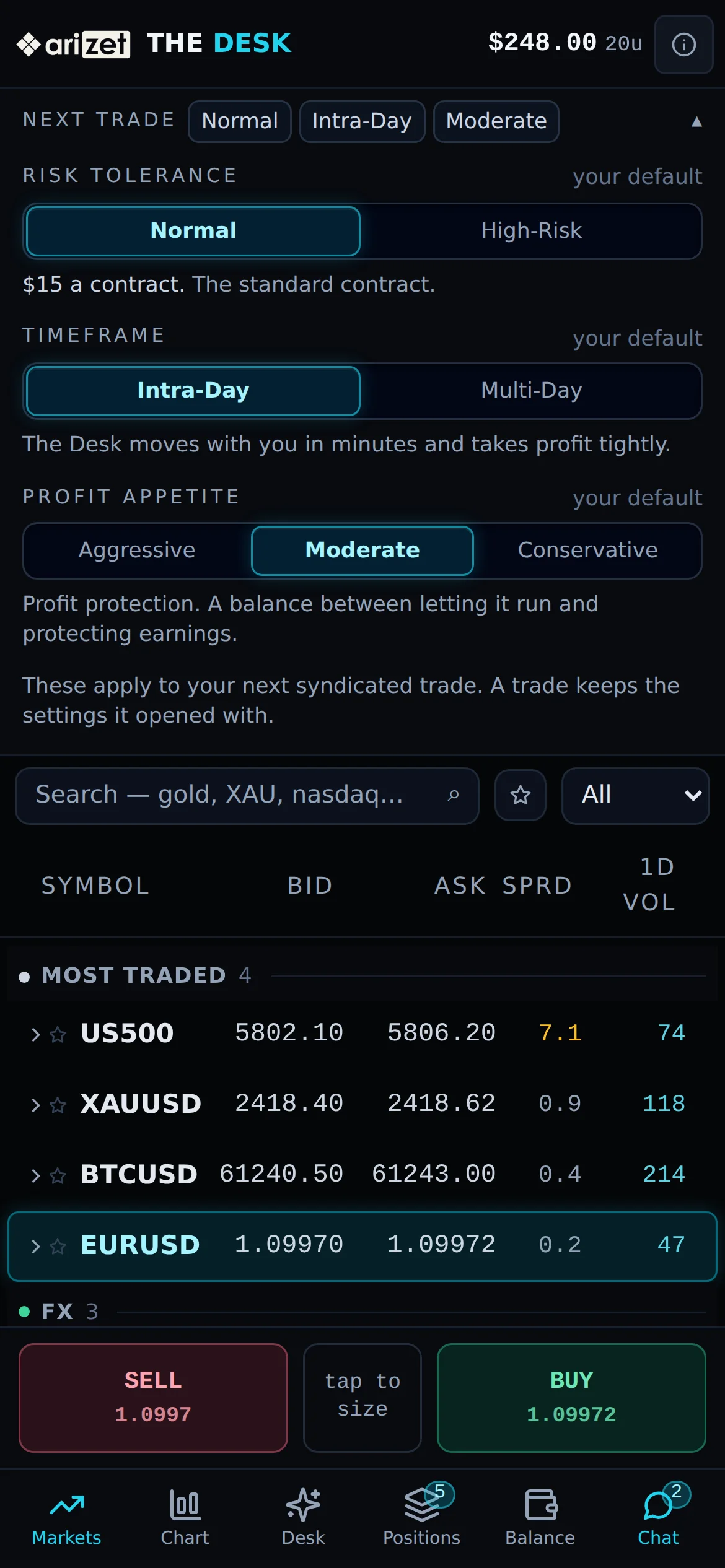
| 1 | Next trade: your three trade settings. Tap to change them; the controls open in place. |
| 2 | Markets: the Watchlist, with a SELL / BUY bar at the bottom. Tap a side to open the ticket. A closed market is shown in grey. |
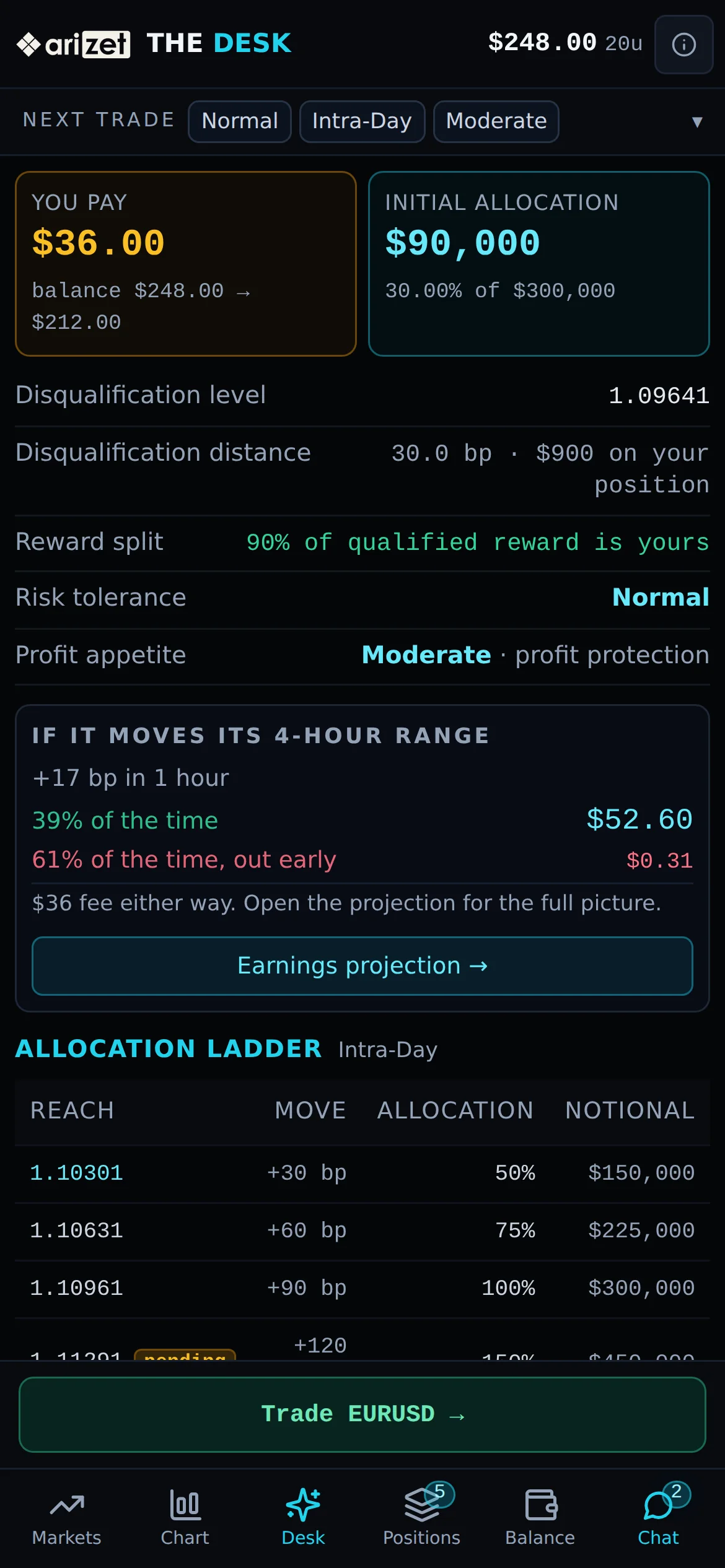
| 3 | Desk: the Pre-open estimate for the selected instrument, with a Trade button. |
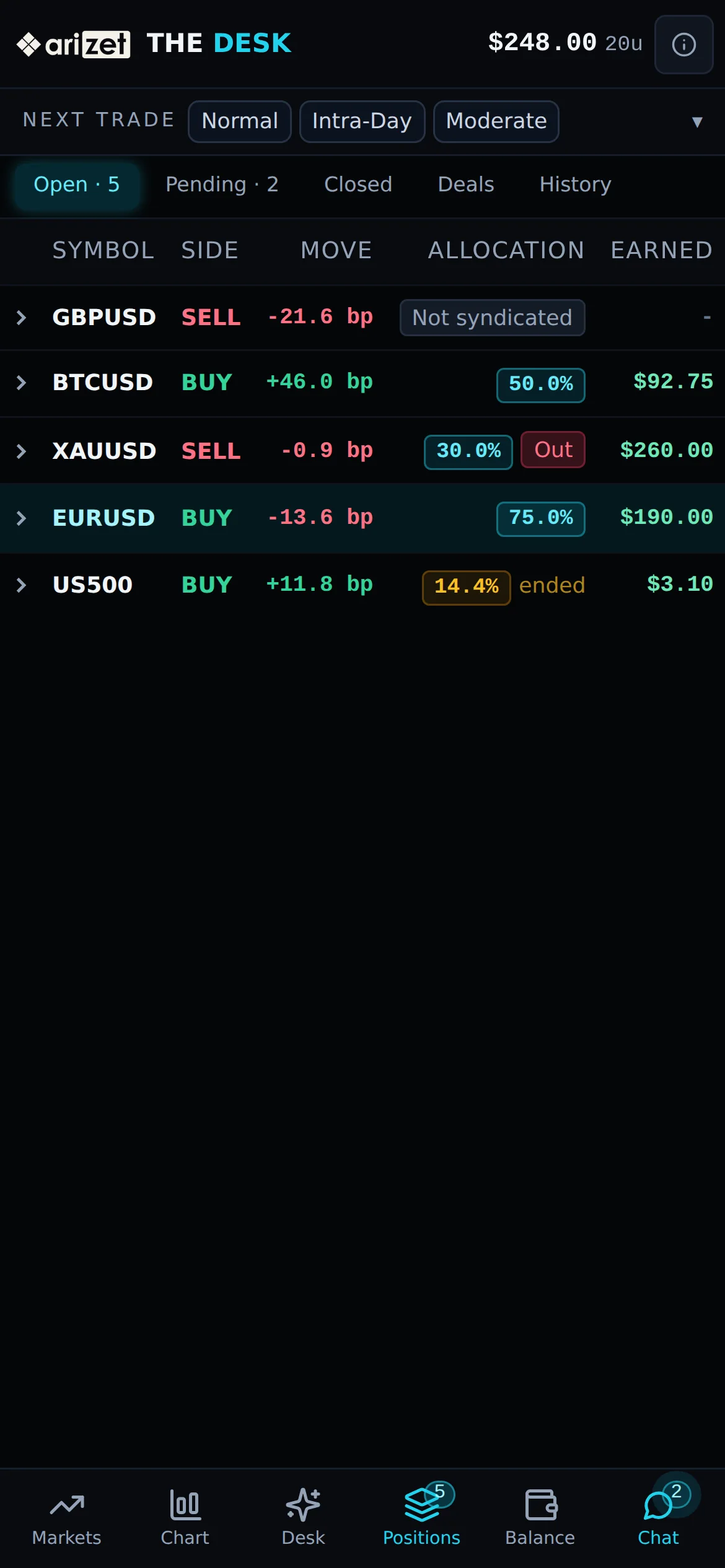
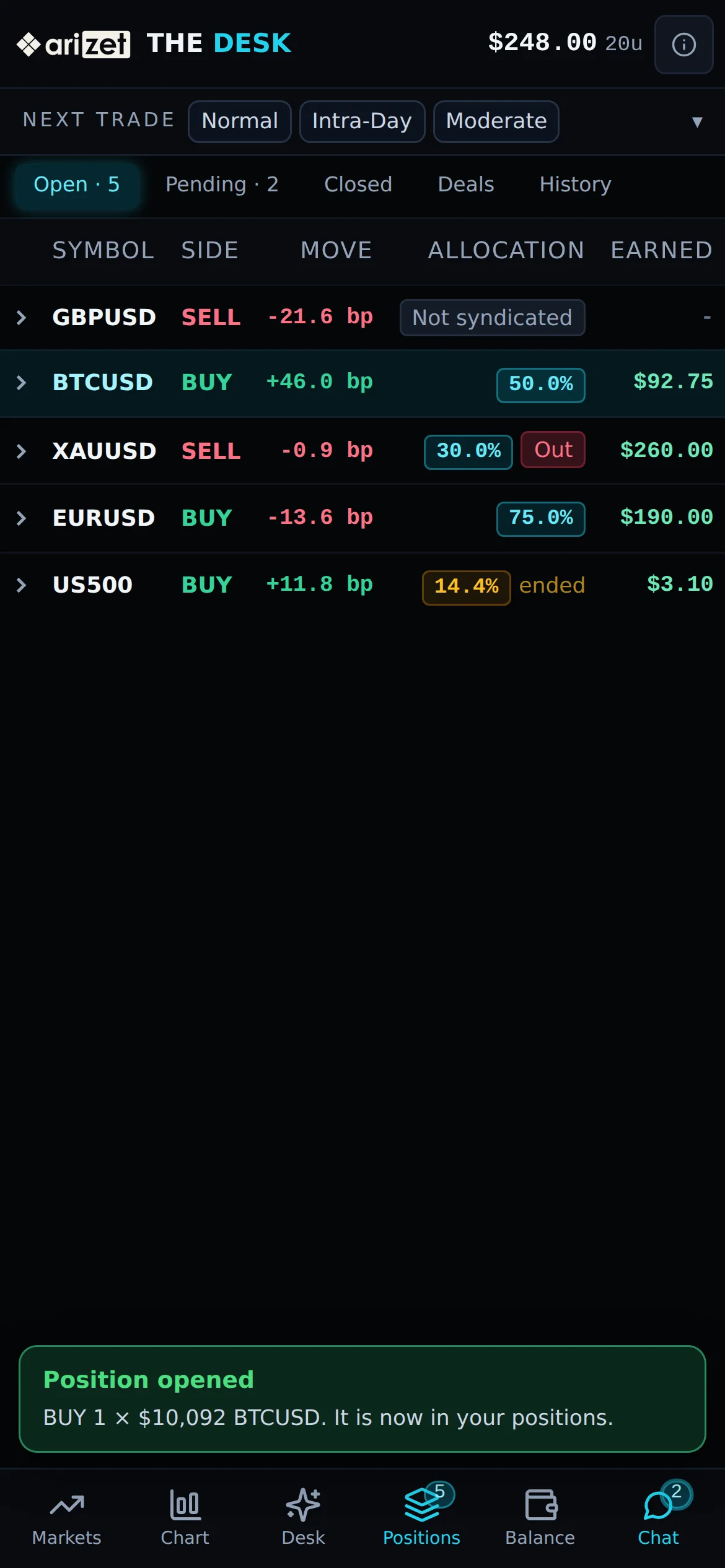
| 4 | Positions, with the number open. Tap a position to open its own screen (below). |
| 5 | Balance: the Balance panel. Chart and Chat are the other two tabs. |
| 6 | Open the symbol chart: the Chart tab for the instrument selected in the list. |
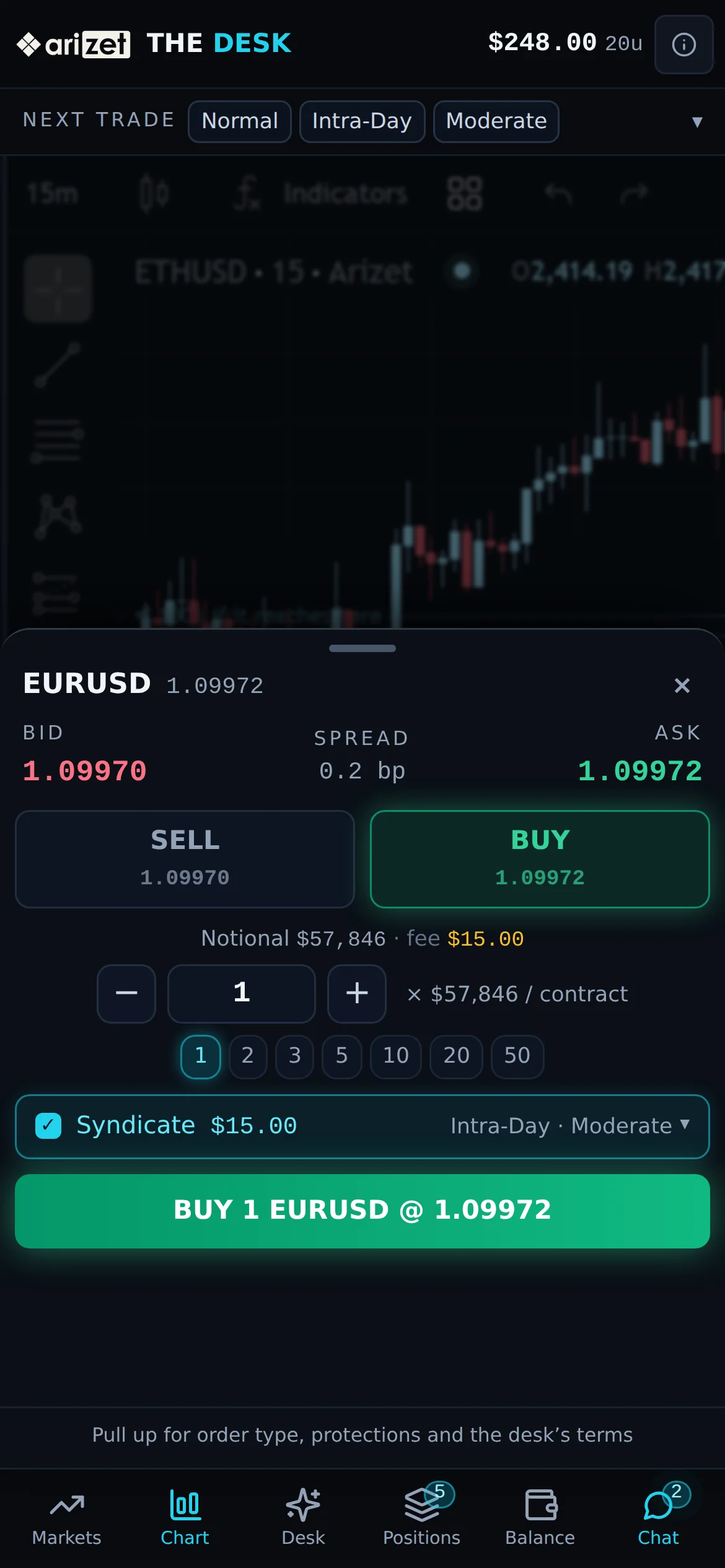
The ticket sheet opens small, with the quote, side, size, the Syndicate row and the send button. Pull it up for order types, stop loss, take profit, trailing stop and the Syndicate Details. The header on a phone shows your syndication balance and units; Add balance is in the Balance tab.
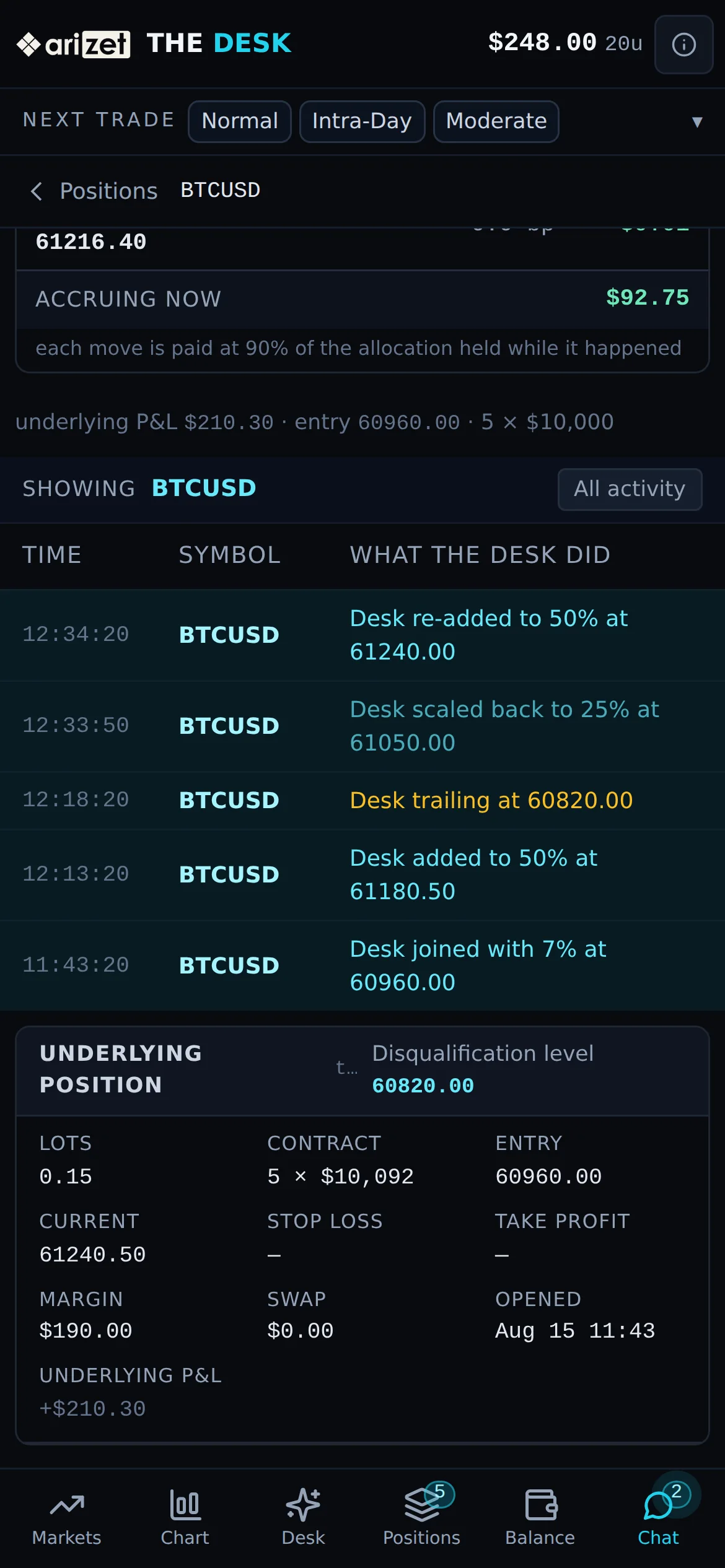
A position's own screen
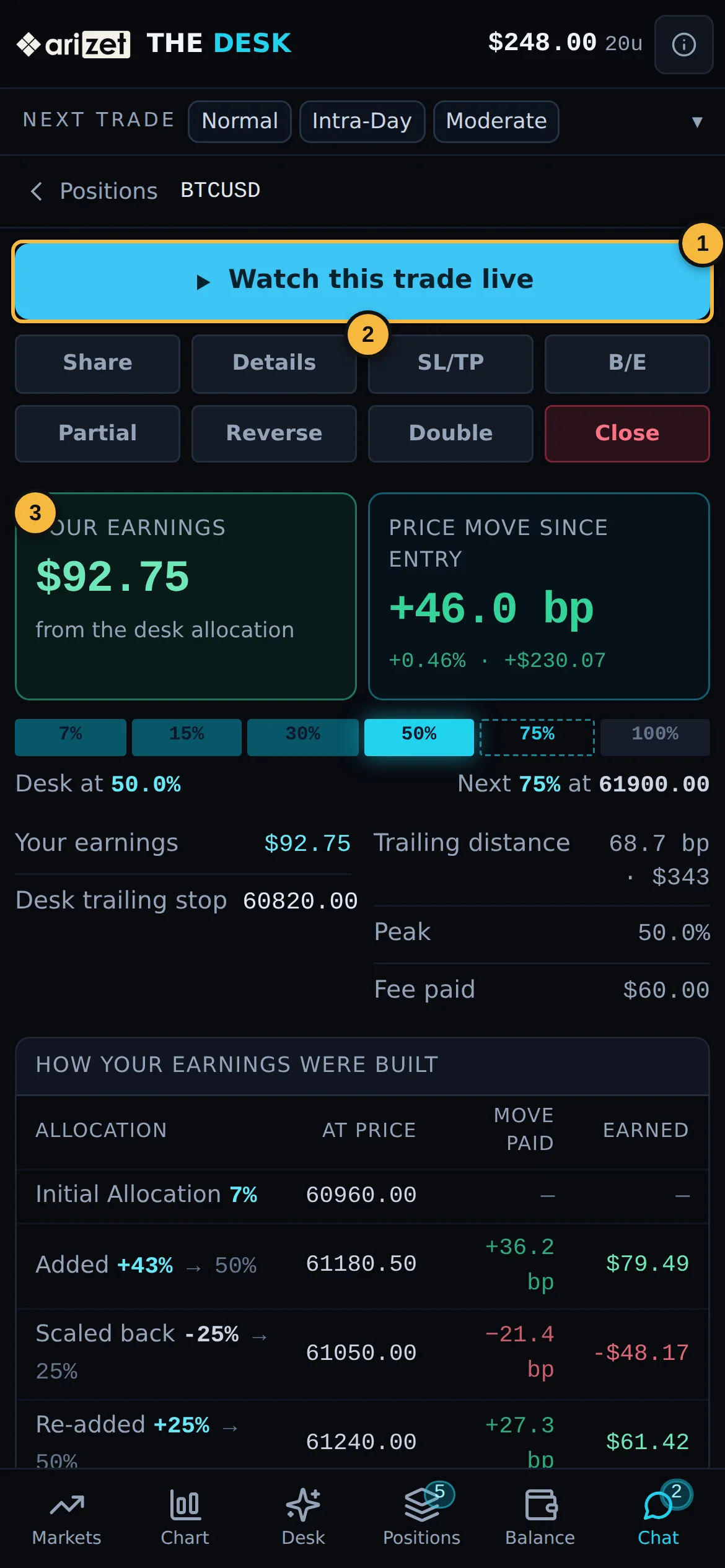
| 1 | Watch this trade live, or Replay what the Desk did once the Desk has finished (Chapter 15). |
| 2 | The position's buttons: Share, Details, SL/TP, B/E, Partial, Reverse, Double and Close (Chapter 13). |
| 3 | The Allocation, then the Activity, and at the very bottom the underlying position. "‹ Positions" takes you back. |
A closed trade opens the same way, with Replay what the Desk did, Share and View full details at the top.
After you send an order, the ticket closes and the Positions tab opens with a short message: Position opened, or Order placed for a limit or stop order, which waits under Pending until it fills.
A replay fills the screen on a phone. Turn the phone sideways for a bigger chart.