

On a computer the Terminal is a set of panels you can arrange. Each panel has a title bar with Pop out (float the panel as its own window) and Close buttons.
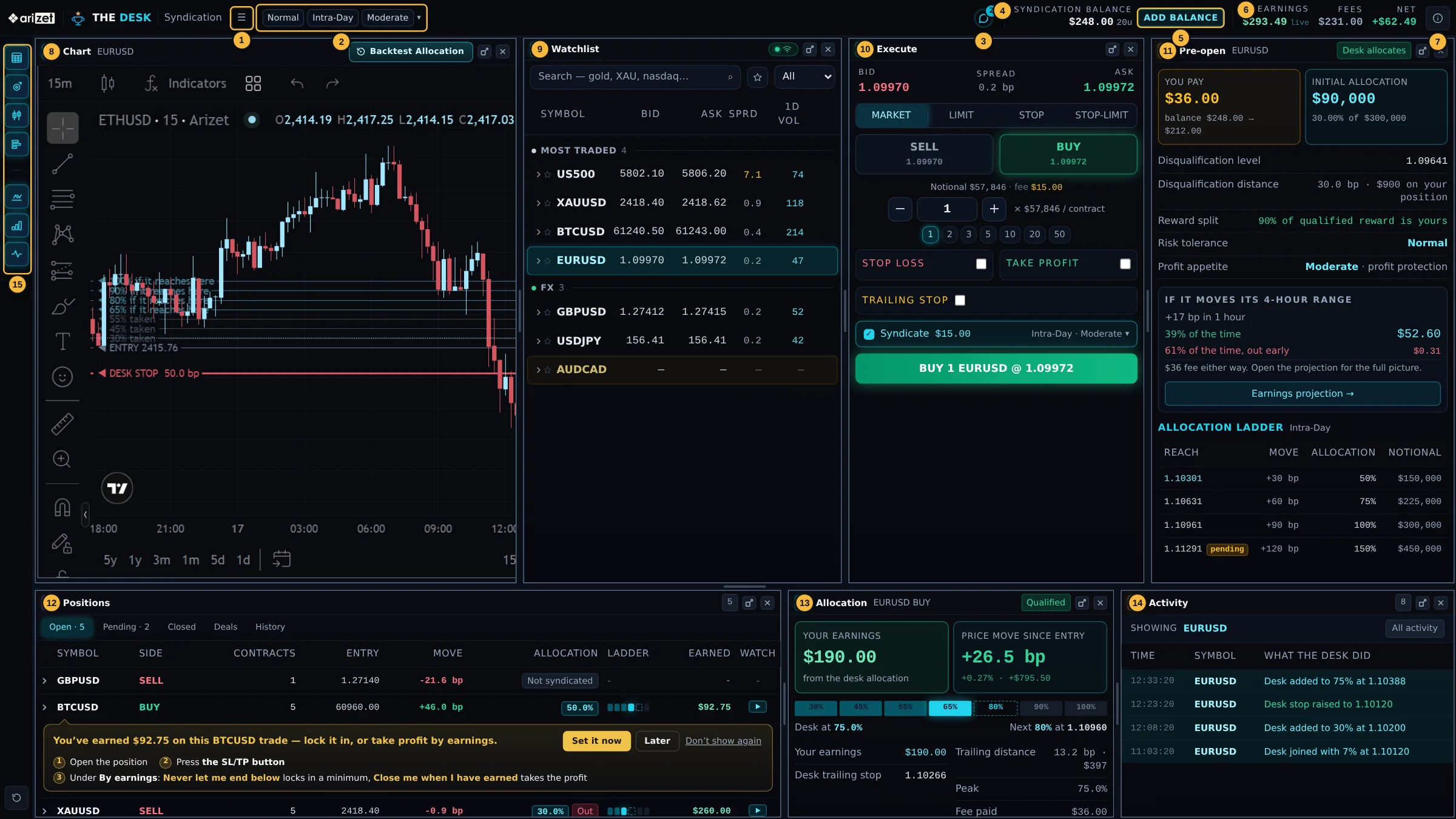
| 1 | Panel menu (☰). Opens a row of buttons to show or hide each panel. When it is closed, the header shows your trade settings instead. |
| 2 | Your trade settings. The three chips show what your next syndicated trade will run on. Click to change them (Chapter 4). |
| 3 | Desk chat. Message the Desk. A number shows unread messages. |
| 4 | Syndication balance, in dollars and units. Amber when it covers fewer than two contracts. |
| 5 | Add balance. Buy syndication units. |
| 6 | Earnings, Fees, Net. Your lifetime earnings (with a pulsing "live" tag while trades are earning), the fees you have paid, and the difference. |
| 7 | Balance (i). Opens the Balance dialog (Chapter 16). |
| 8 | Chart, with the Backtest Allocation button (Chapter 6). |
| 9 | Watchlist of instruments with live prices (Chapter 5). |
| 10 | Execute, the order ticket (Chapter 9). |
| 11 | Pre-open, what the Desk would do on the selected instrument before you trade (Chapter 7). |
| 12 | Positions: open, pending and closed trades (Chapters 13 to 15). |
| 13 | Allocation: the Desk's allocation on the selected position (Chapter 11). |
| 14 | Activity: a log of everything the Desk did (Chapter 12). |
| 15 | Panel rail. One button per panel, and Reset layout at the bottom to put every panel back where it started. |
The panel menu

Smaller windows
On a narrower window the panels share space as tabs instead of disappearing: Execute and Pre-open pair first, then Watchlist joins them, and Positions, Allocation and Activity become one tabbed panel. Nothing is ever hidden; look for the tab names in the panel title. On a phone the Terminal changes to a tabbed layout of its own (Chapter 17).
Messages under the header
If a trade you opened was not syndicated, a banner under the header says so, gives the reason, and shows what was needed against what your balance held. Press ✕ to dismiss it.